
stethoscope Quick Diagnostic Guide
If Paint 3D is not working properly on your PC, match your symptom below to the recommended fix:
| Symptom | Common Cause | Suggested Fix | Data Risk |
|---|---|---|---|
| Paint 3D not opening (clicking the icon does nothing) | A frozen background process is still running | Fix 1: End in Task Manager | No data loss |
| Splash screen flashes and closes right away | Damaged application files | Fix 2: Repair in Settings | Keeps your data |
| Paint 3D not responding or canvas freezes | Corrupted temporary cache or app settings | Fix 3: Reset the app | Clears app cache |
| App will not launch or shows registration errors | Broken Windows package registration | Fix 4: Re-register with PowerShell | No data loss |
| Paint 3D crashes when rotating 3D view or opening models | Graphics card conflict or driver issue | Fix 5: Change graphics settings | No data loss |
| "3D Library" shows a network connection error | Microsoft permanently shut down the Remix 3D service | See 3D Library details | Service closed |
warning Important: Do Not Uninstall Paint 3D Yet
Microsoft officially retired Paint 3D on November 4, 2024, as detailed in Microsoft's Windows client deprecated features documentation, and removed it from Microsoft Store search results (read our full breakdown on why Microsoft retired Paint 3D and its history).
Older troubleshooting articles often suggest uninstalling and reinstalling from the Store. Do not do that. If you uninstall it now, a normal Store search will not find it, and regular download links will fail.
Try the repair and reset steps below first. If you have already uninstalled the app, check the reinstallation guide at the bottom of this page.
Fix 1: End Paint 3D in Task Manager
Steps to follow:
-
1
Press Ctrl + Shift + Esc to open Task Manager (or right-click the Start button and select it from the menu).
-
2
Make sure the Processes tab is selected on the left sidebar.
-
3
In the search bar at the top, type
paint 3d. -
4
Look for Paint 3D in the search results. It will often show a status of Suspended with a pause icon.
-
5
Right-click Paint 3D and choose End task.
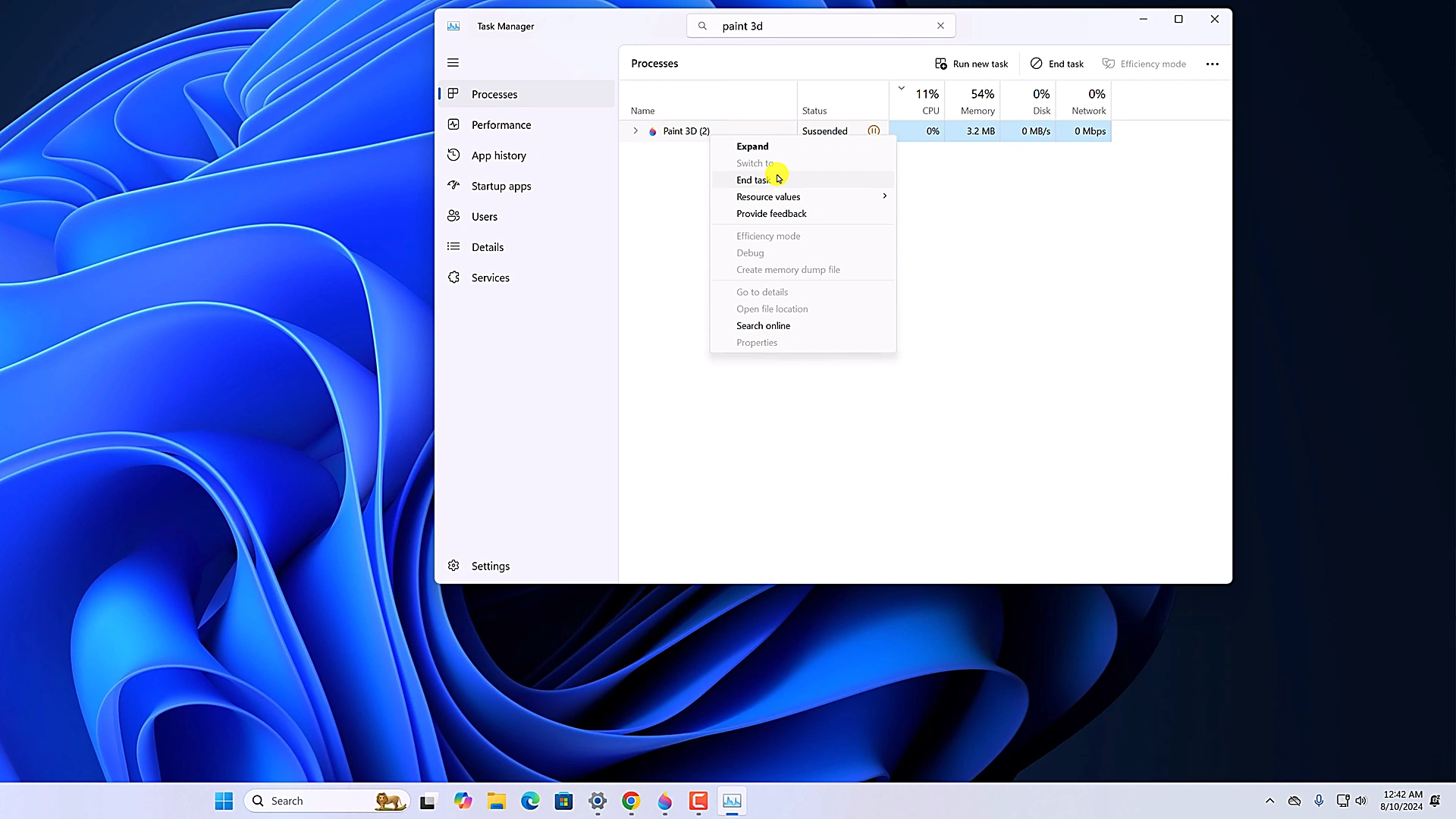
Figure 1: Search for "paint 3d" in Task Manager, right-click the process, and select "End task". -
6
Close Task Manager and launch the app again from your Start menu. It should now open normally.
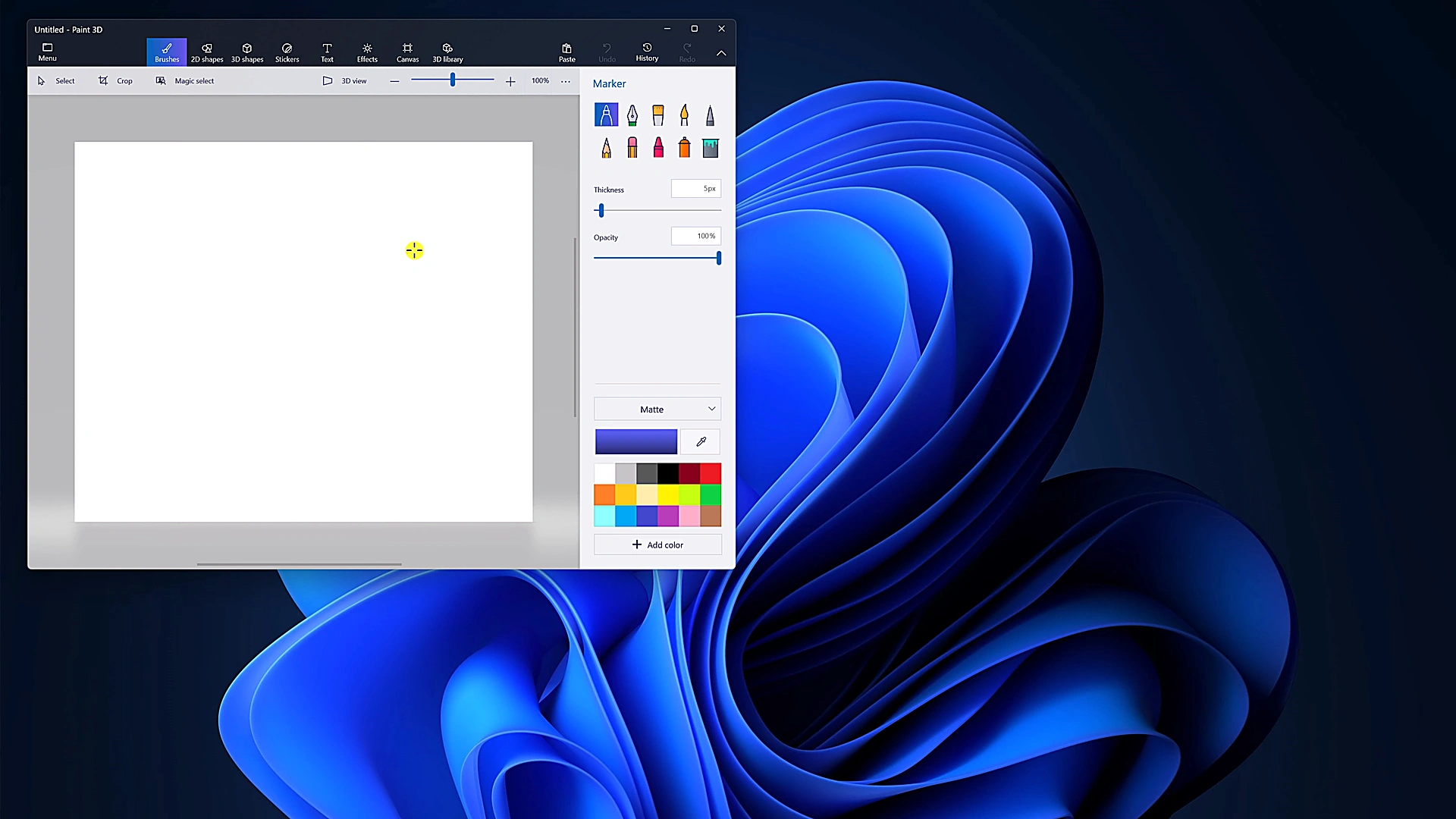
Figure 2: Paint 3D opening normally to the canvas after ending the stuck background process.
Fix 2: Repair Paint 3D in Windows Settings
Steps to follow:
-
1
Press Win + I to open Windows Settings.
-
2
Click Apps, then click Installed apps (on Windows 10, click Apps & features).
-
3
In the search box, type
paint 3d. -
4
Click the three dots (
...) next to Paint 3D (on Windows 10, click Paint 3D directly). -
5
Select Advanced options.
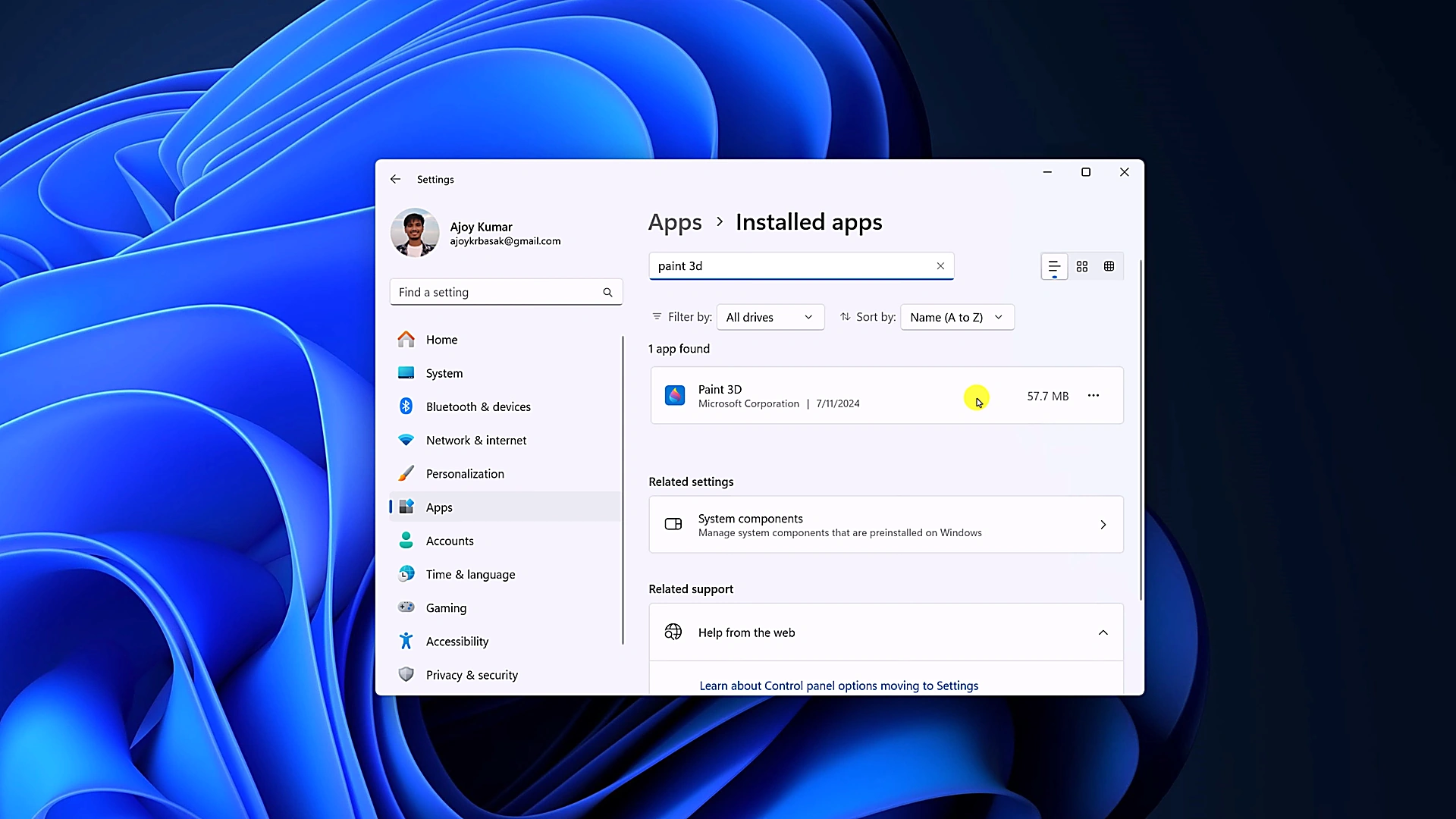
Figure 3: In Settings > Apps > Installed apps, click the three dots next to Paint 3D and select "Advanced options". -
6
In the Advanced options window, make sure background app permissions are turned on.
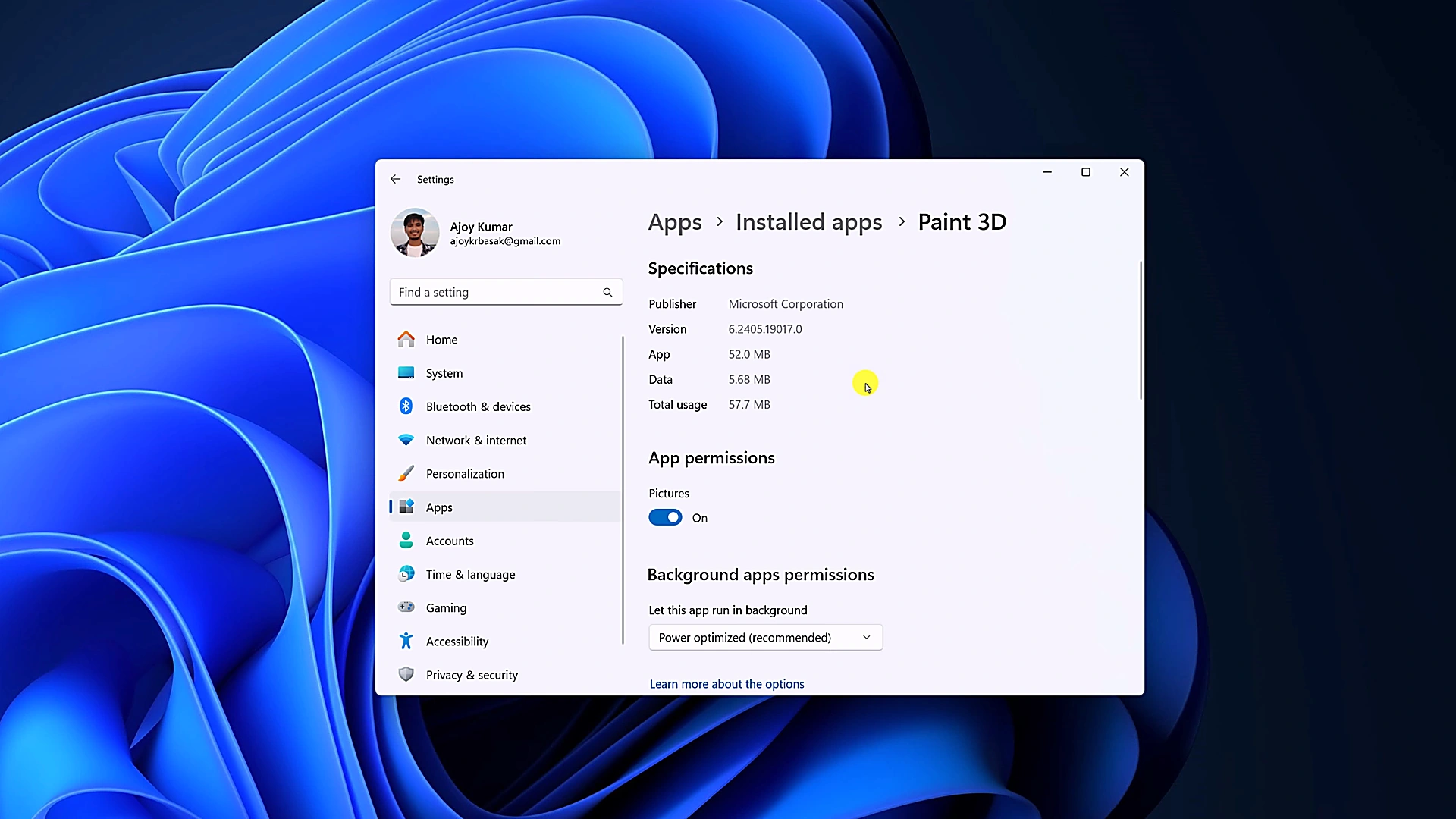
Figure 4: The Advanced options page showing app details and background permissions. -
7
Scroll down to the Reset section and click Repair.
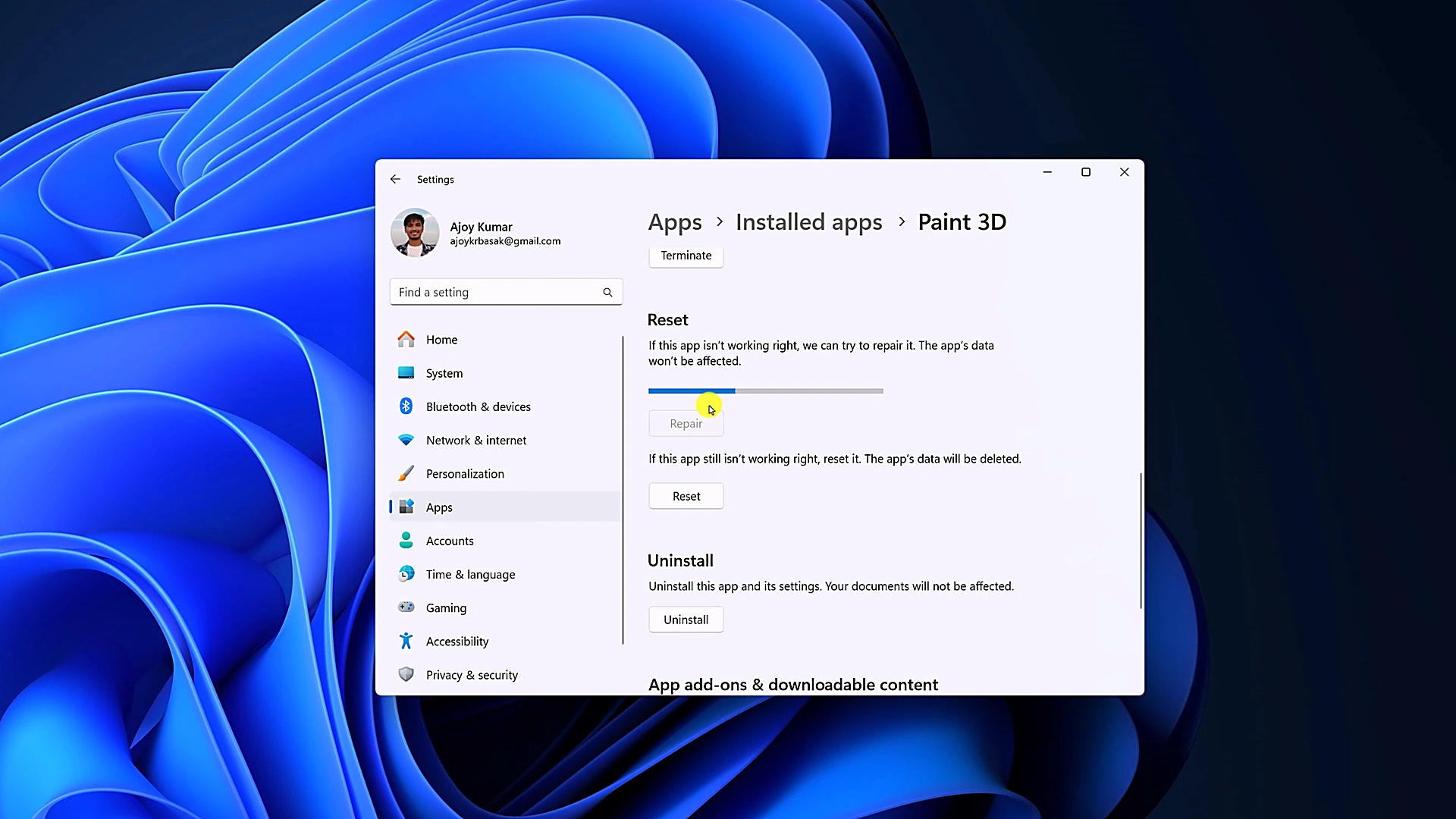
Figure 5: Click "Repair" under the Reset section to let Windows check and fix app files. -
8
Wait a few seconds for the checkmark (✓) to appear next to the button. Once it finishes, try opening the app again.
Fix 3: Reset Paint 3D
Resetting deletes local app data, including projects saved inside the app workspace. If you have work there, make a backup first. Press Win + R, paste the folder path below, press Enter, and copy the Projects folder somewhere safe like your Desktop:
%LocalAppData%\Packages\Microsoft.MSPaint_8wekyb3d8bbwe\LocalState\Projects
Steps to follow:
-
1
Return to the Paint 3D Advanced options screen in Windows Settings (
Settings > Apps > Installed apps > Paint 3D > Advanced options). -
2
Scroll down to the Reset section, right below the Repair button.
-
3
Click the Reset button.
-
4
Windows will warn you that app data will be deleted. Click Reset again to confirm.
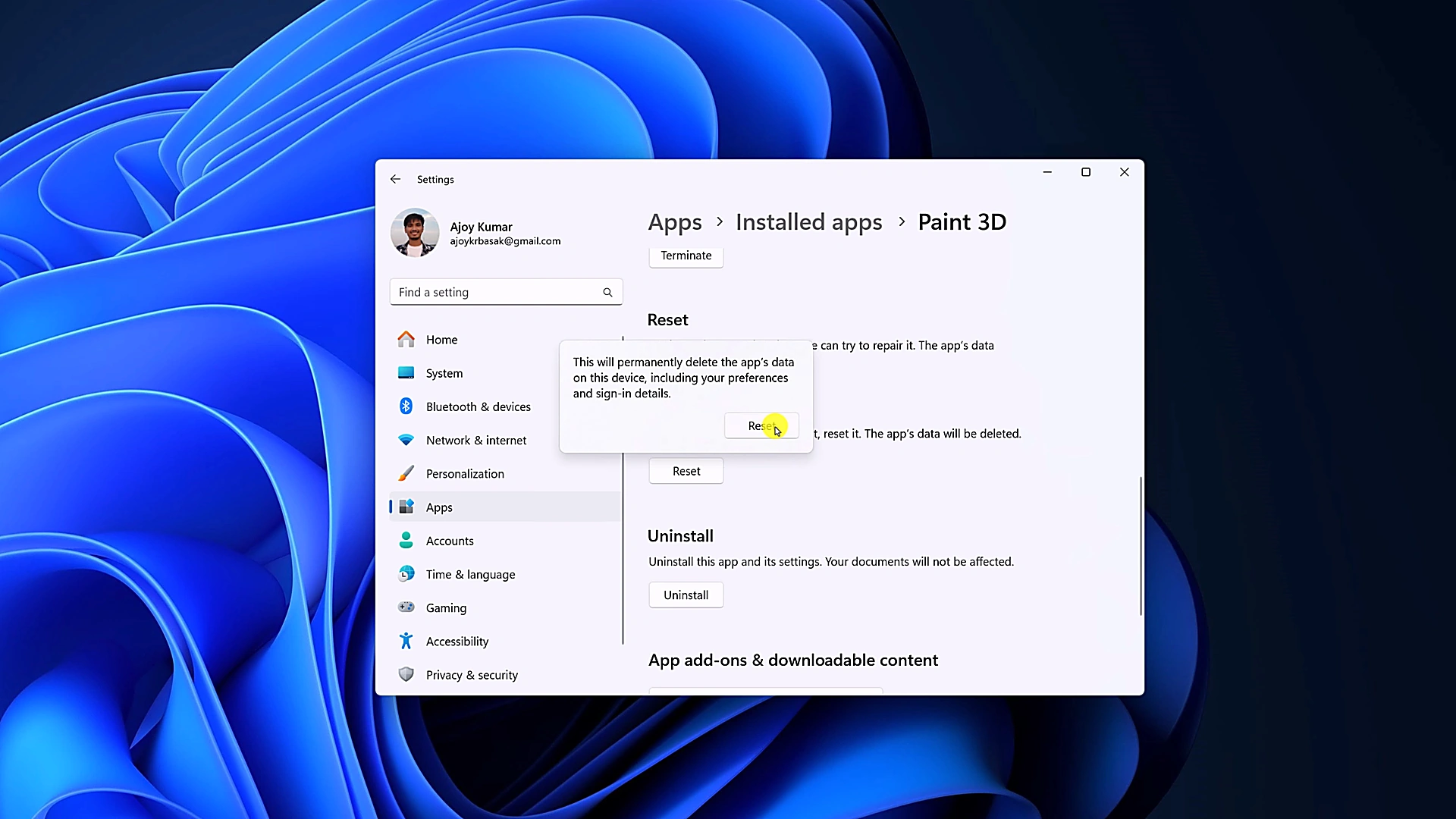
Figure 6: Windows prompts for confirmation before clearing app cache and resetting settings. -
5
Wait a few seconds for the checkmark (✓) to appear next to the button.
-
6
Open the app again. It will load with default settings, just like a fresh install.
Fix 4: Re-register Paint 3D Using PowerShell
Steps to follow:
-
1
Right-click the Start button on your taskbar and select Terminal (Admin) or Windows PowerShell (Admin).
-
2
Click Yes when prompted by User Account Control (UAC).
-
3
Copy and paste the following PowerShell command into the terminal, then press Enter:Administrator: Windows PowerShell
Get-AppxPackage -allusers Microsoft.MSPaint | Foreach {Add-AppxPackage -DisableDevelopmentMode -Register "$($_.InstallLocation)\AppXManifest.xml"}This command uses the standard Microsoft Appx package registration cmdlet to reconnect corrupted manifest files without altering your personal files.
-
4
A blue progress banner will appear briefly across the window while Windows registers the app.
-
5
Once the command finishes and you see a regular command prompt again, close PowerShell and try opening Paint 3D.
Fix 5: Resolve Paint 3D Crashes in 3D View or Graphics Settings
.glb model.
Steps to follow:
-
1
Open Settings (Win + I) and navigate to System > Display > Graphics.
-
2
Under "Custom options for apps", set the dropdown to Microsoft Store app.
-
3
Select Paint 3D from the list.
-
4
Click Options under the Paint 3D entry.
-
5
Choose High performance to assign the app to your dedicated graphics card. If your dedicated card is already having driver issues, choose Power saving instead to use integrated graphics.
-
6
Click Save and reopen Paint 3D to test it.
- 7
What to Do If You Already Uninstalled the App
Older articles often tell users to uninstall Paint 3D and reinstall it from the Microsoft Store.
Why that no longer works: Microsoft retired Paint 3D on November 4, 2024, and removed it from Store search. If you search for it today, the Store only shows alternative 3D viewers or classic Paint.
If the app is already gone from your PC, you have two practical options to get it back:
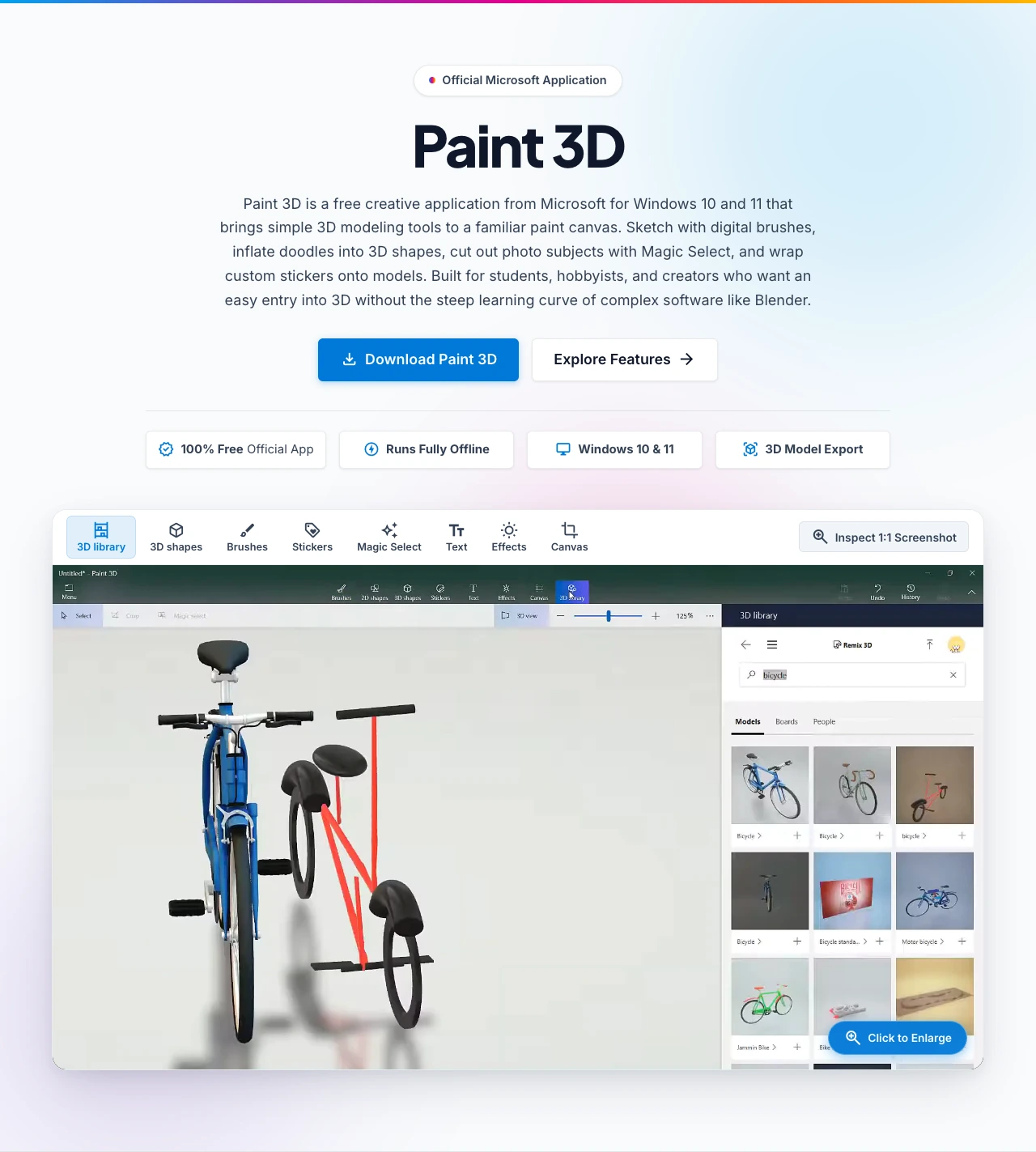
How to Get Paint 3D Back:
If you installed Paint 3D in the past with your Microsoft account, it should still be in your purchase history. Open the Microsoft Store, click Library in the bottom-left corner, click Apps, filter by Not installed, and look for Paint 3D. If it appears, click the cloud download icon.
If the app is not in your library history, you can download the original installer package from our download section and install it using PowerShell:
Add-AppxPackage -Path ".\2024.2410.13017.0.AppxBundle"
Common Questions
Microsoft shut down the online catalog (Remix 3D) behind the 3D Library button in December 2021. Because the service is gone, repairing or reinstalling the app will not make it work.
You can still add 3D objects to your projects manually. See our 3D Modeling and File Import Guide to learn how to download .glb, .obj, or .3mf models from 3D repositories and drag them directly onto your canvas.
No. Any drawings or 3D models you exported to folders like Pictures or Documents (such as .png, .jpg, or .glb files) are safe. Resetting only clears the app's internal cache, settings, and unsaved work stored inside the app itself.
The actual fixes work the same way on both versions. The only difference is how you navigate to the app in Settings:
- Windows 11: Settings > Apps > Installed apps > three dots next to Paint 3D > Advanced options
- Windows 10: Settings > Apps > Apps & features > click Paint 3D > Advanced options
There is no direct replacement from Microsoft. Instead, they updated classic Paint with layers and transparency for 2D work, and kept 3D Viewer for viewing existing 3D files. For creating new 3D projects, keeping Paint 3D installed offline remains the best solution for casual 3D design and stickers.